Ordering Replacement Parts Process
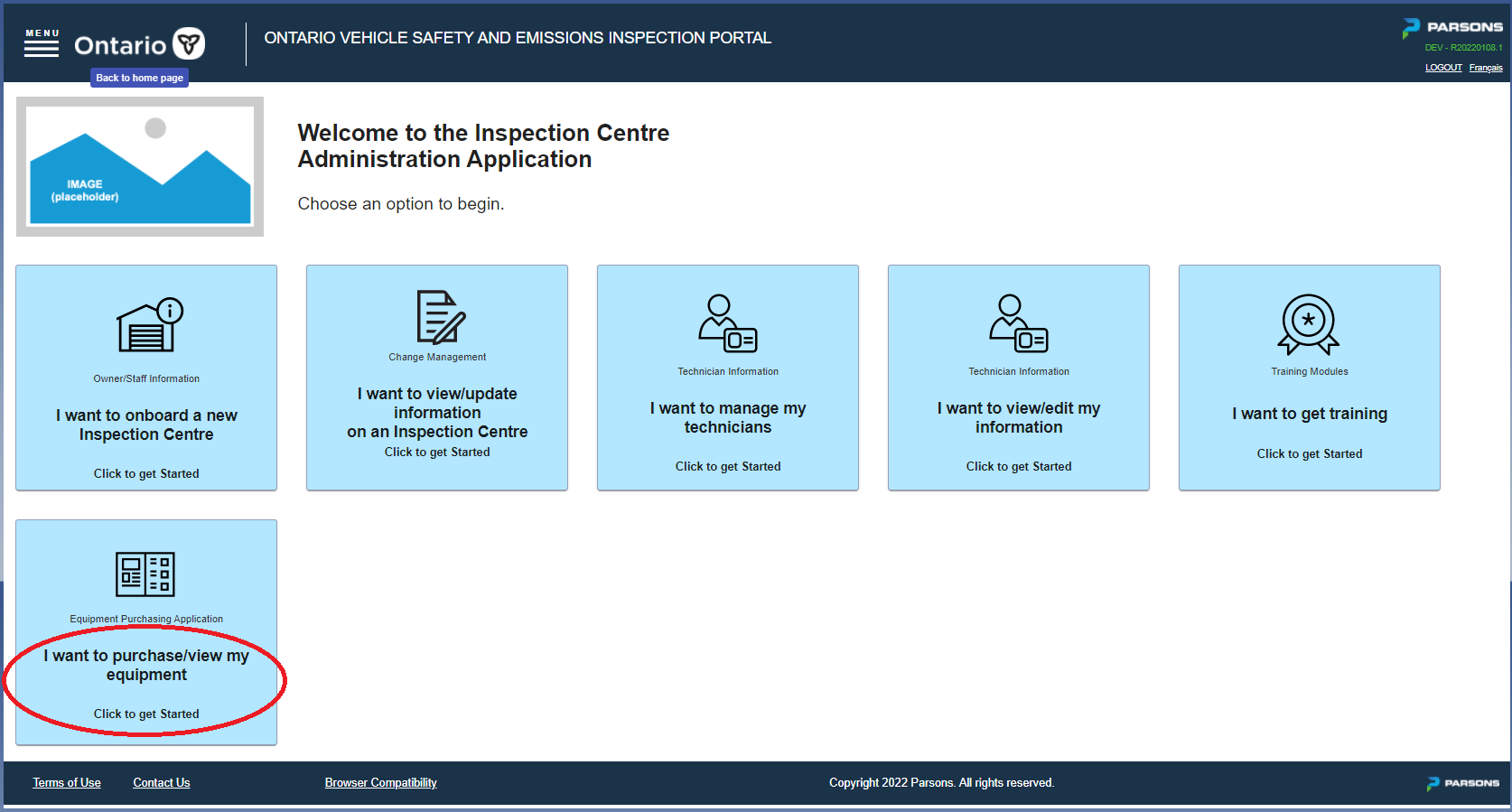
From the ICAA portal, select the "I want to Purchase/view my equipment" card.
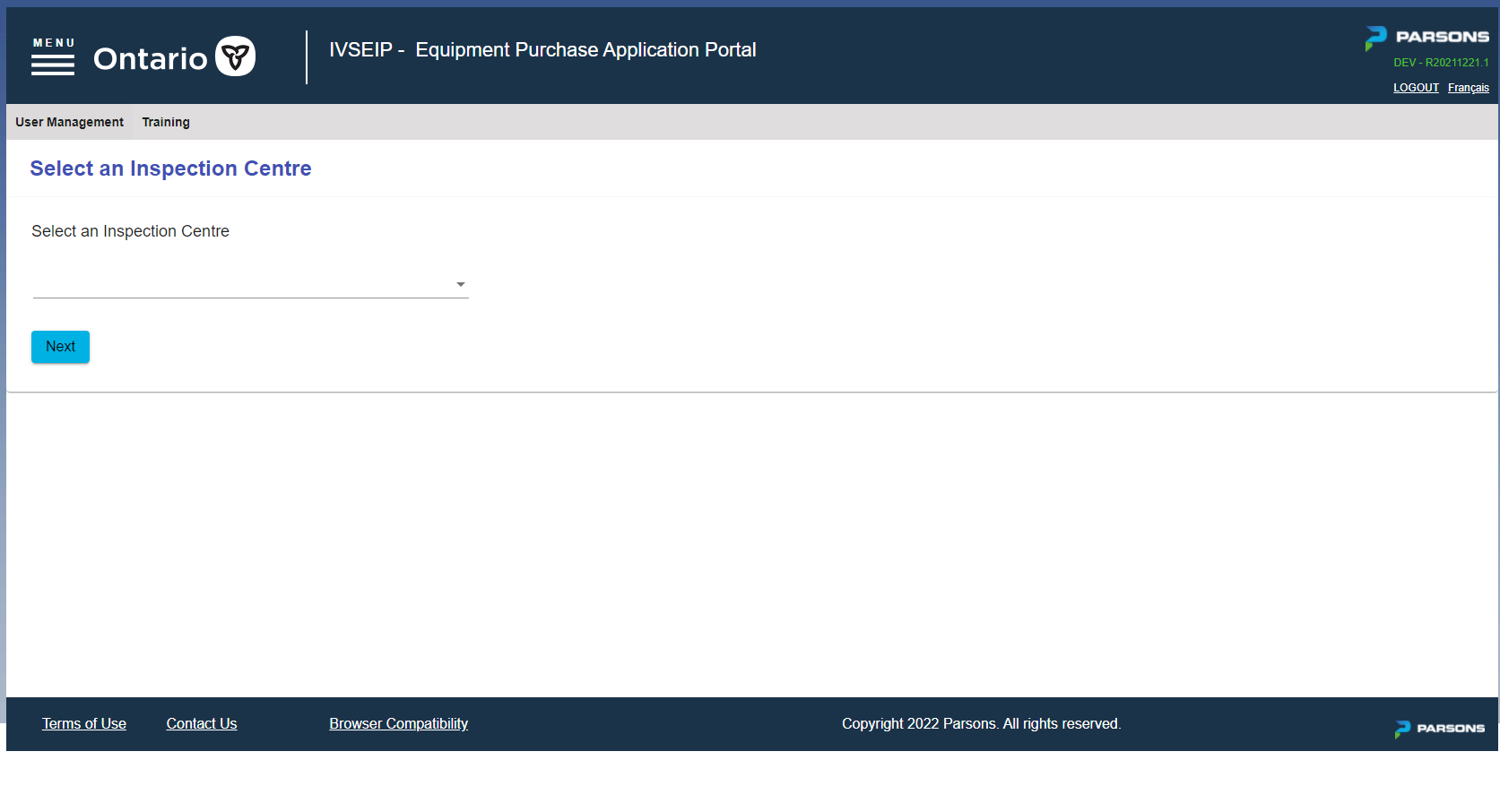
Using the drop down menu on the following page, select the Vehicle Inspection Centre that you want to order the Equipment /Replacement parts for. Click "Next" when you have selected the desired VIC.
In the "Purchase Equipment" tab, and you will be guided through a series of steps:
- Step 1 of 3 Select a bundle
- Step 2 of 3 Choose add-on
- Step 3 of 3 Review items before completing purchase
Note: Step 2 is where all the replacement parts are listed down.
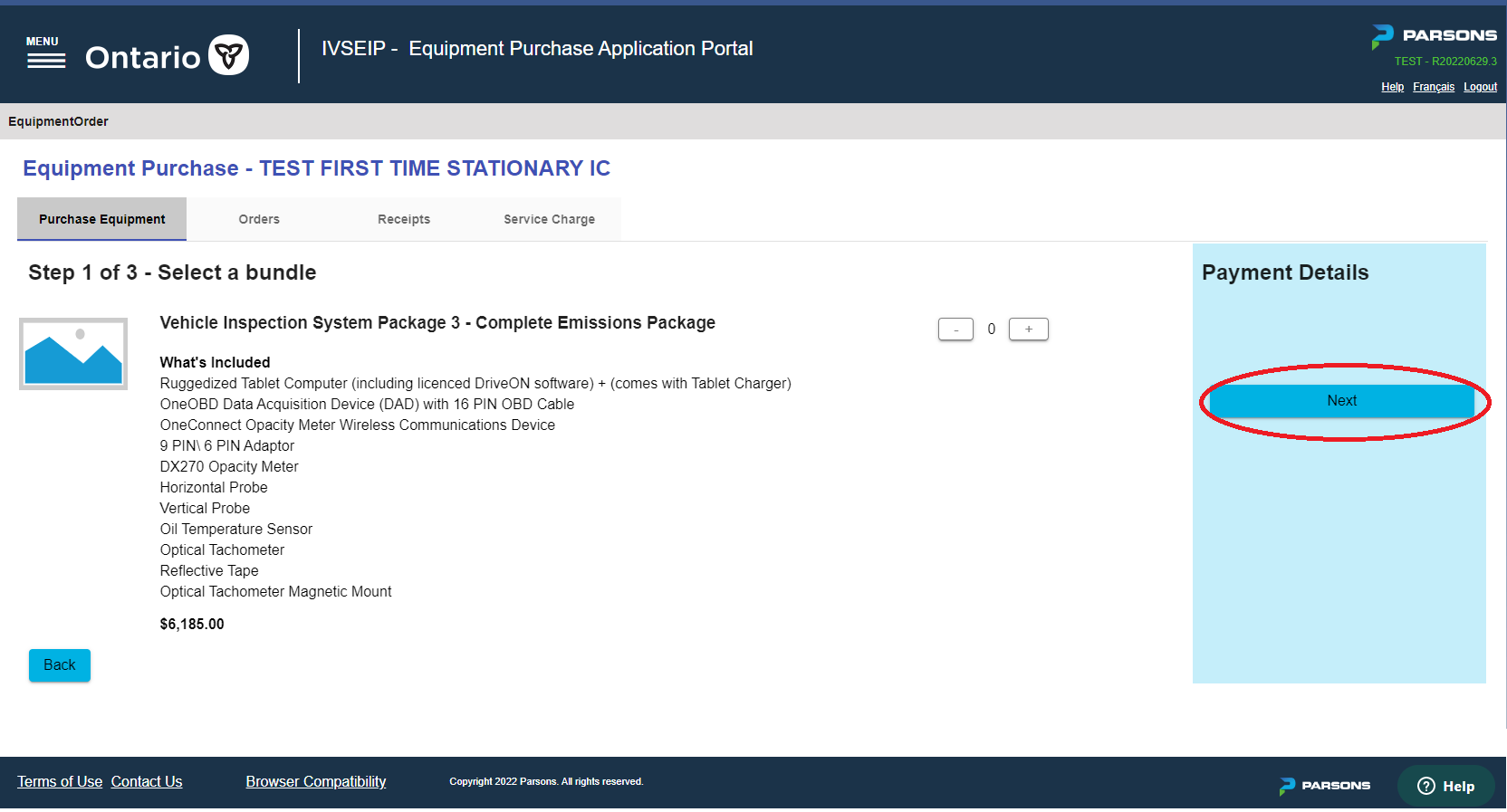
Step 1 of 3 Select a bundle
In the Step 1 screen, without selecting any quantity, click the “Next” button in the Payment Details section located at the right-hand side of the screen.
Step 2 of 3 - Choose add-on
You will see a list of other optional (replacement) components which you can Purchase, if desired.
You will be unable to select a quantify for any items that are out of stock. To order an out of stock item, please call the Vehicle Inspection Centre Technical Support line at 1-833-420-2110.
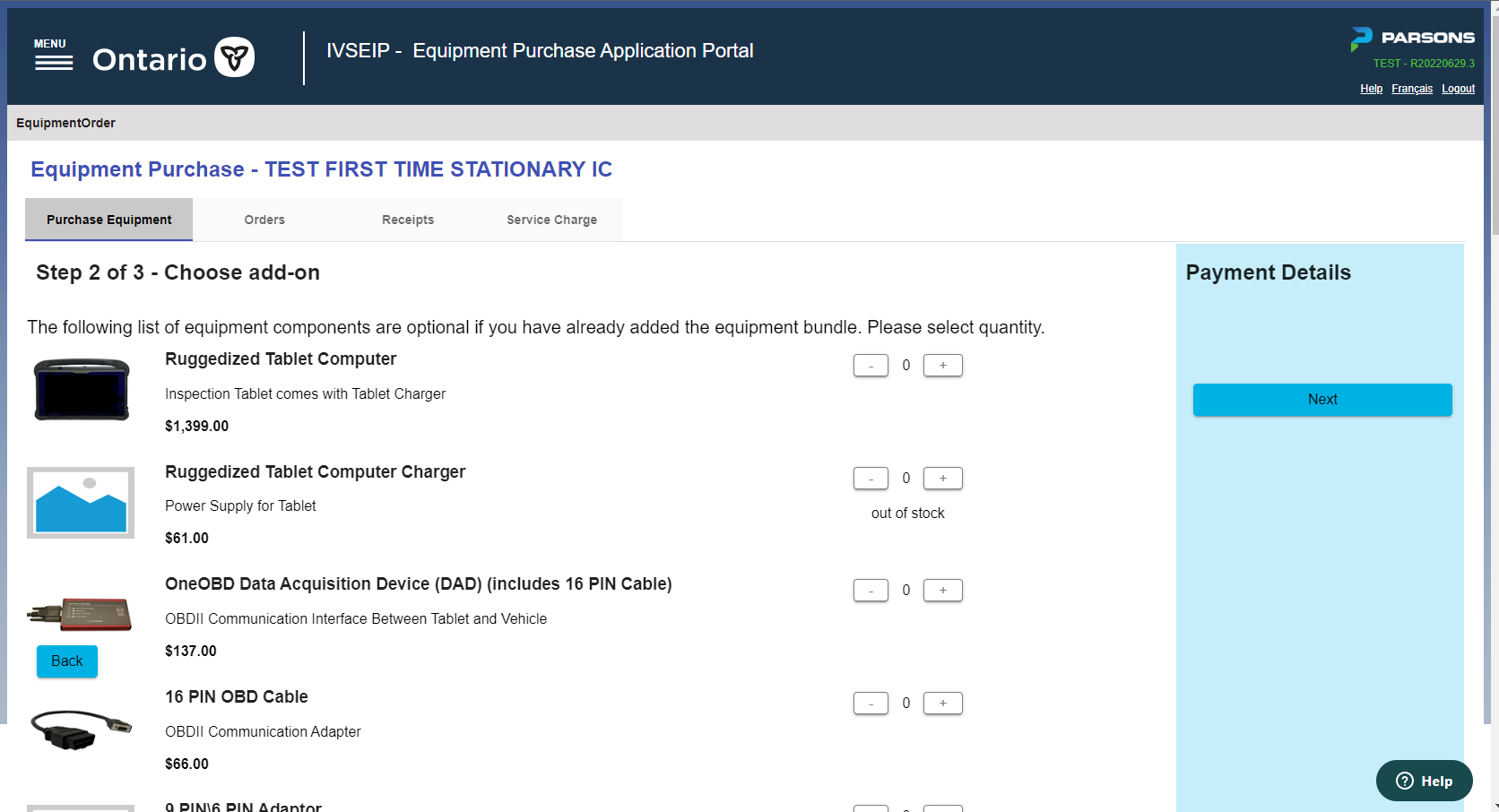
As you select add-on items, they will be added to the Payment Details section on the right-hand side of the screen. The screen will automatically reflect changes in quantity and the total amount due.
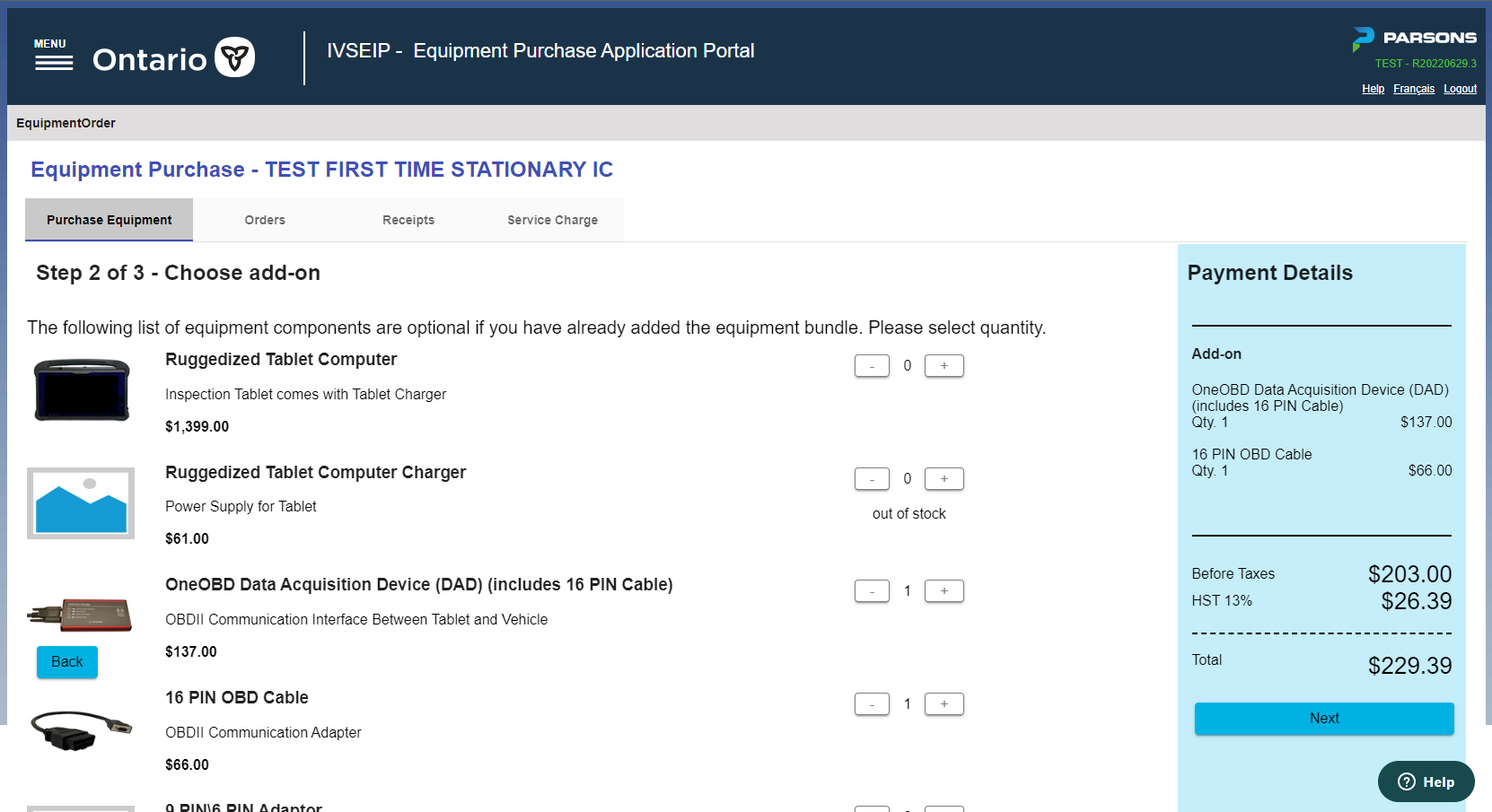
Once you have selected the all optional equipment components, click the "Next" button.
Step 3 of 3 Review items before completing purchase
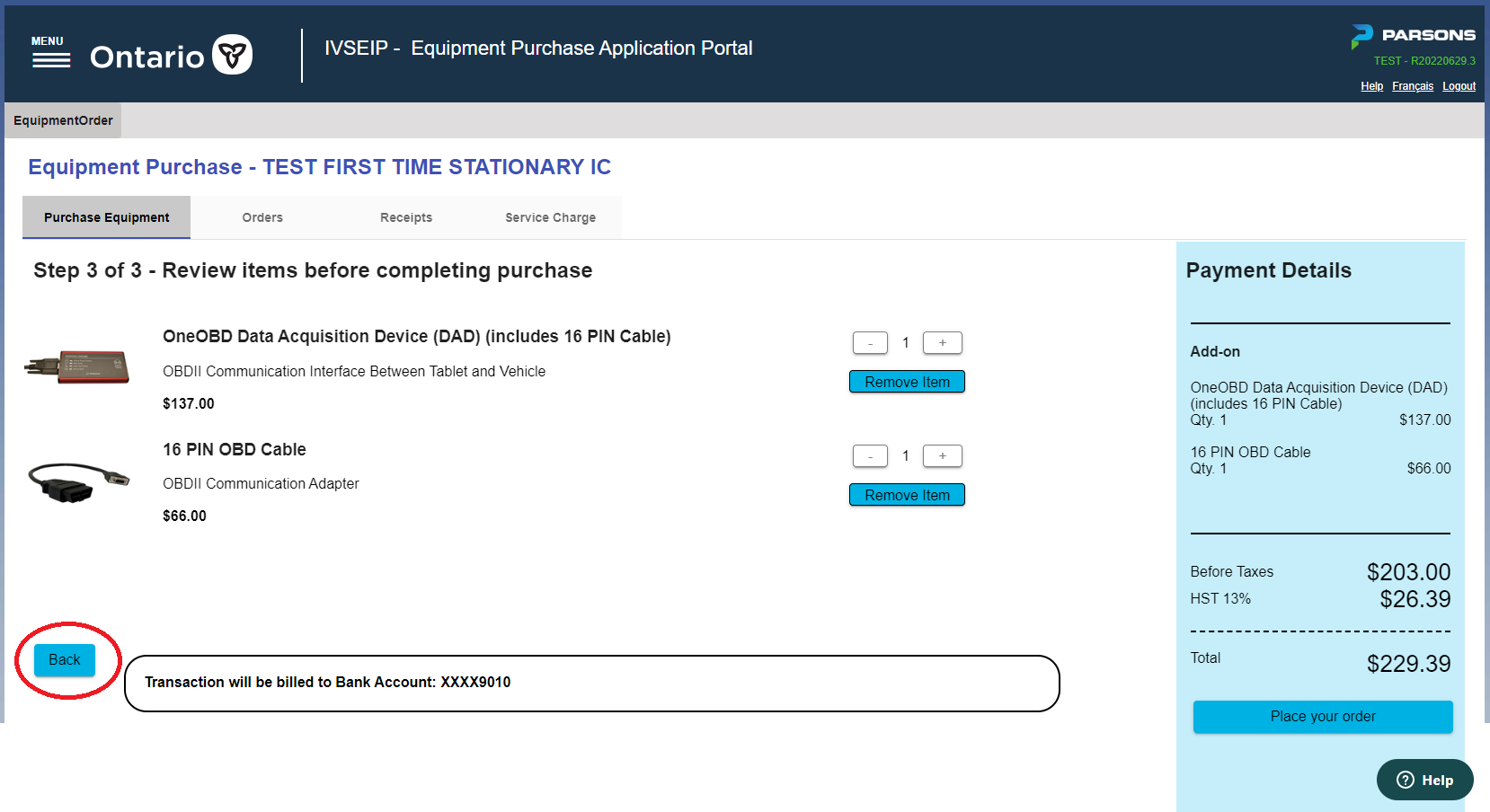
On this screen, you will review your selected items and quantity.
Note: You can modify the item quantity using the "-" and "+" buttons, or remove it entirely by using the "Remove Item" button, from this screen.
If you want to go back to a previous step, can click on the "Back" button located in the left bottom corner of the screen.
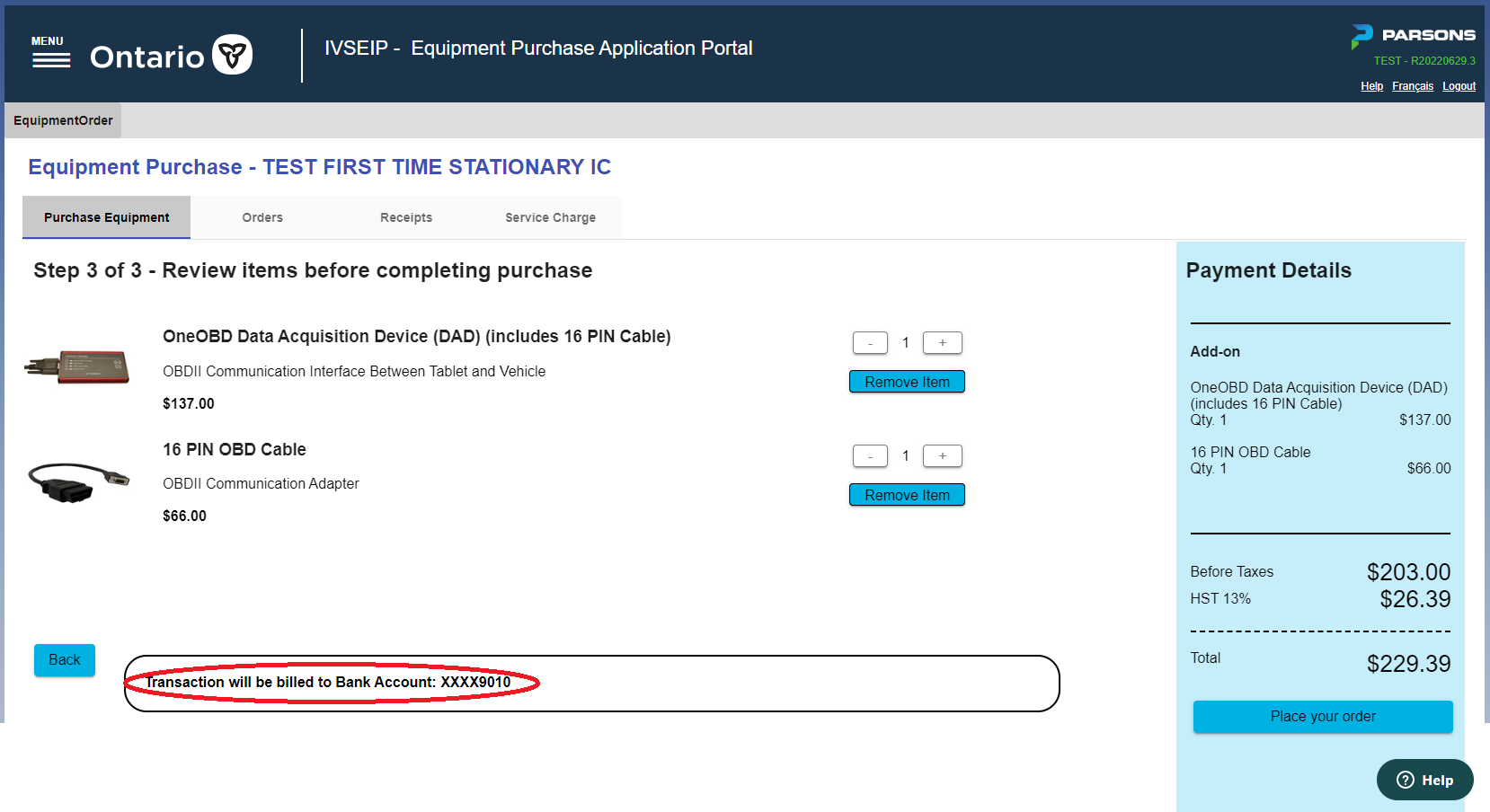
Before proceeding to place your order, you will see the last 4 digits of bank account that will be used to process the order. Make sure it is the correct bank account number. If the account number has changed, or is incorrect, then you will need to go to the Inspection Centre Administration Application (ICAA) and update your Banking Information before placing your Equipment Order. This will reduce any delays in order processing.
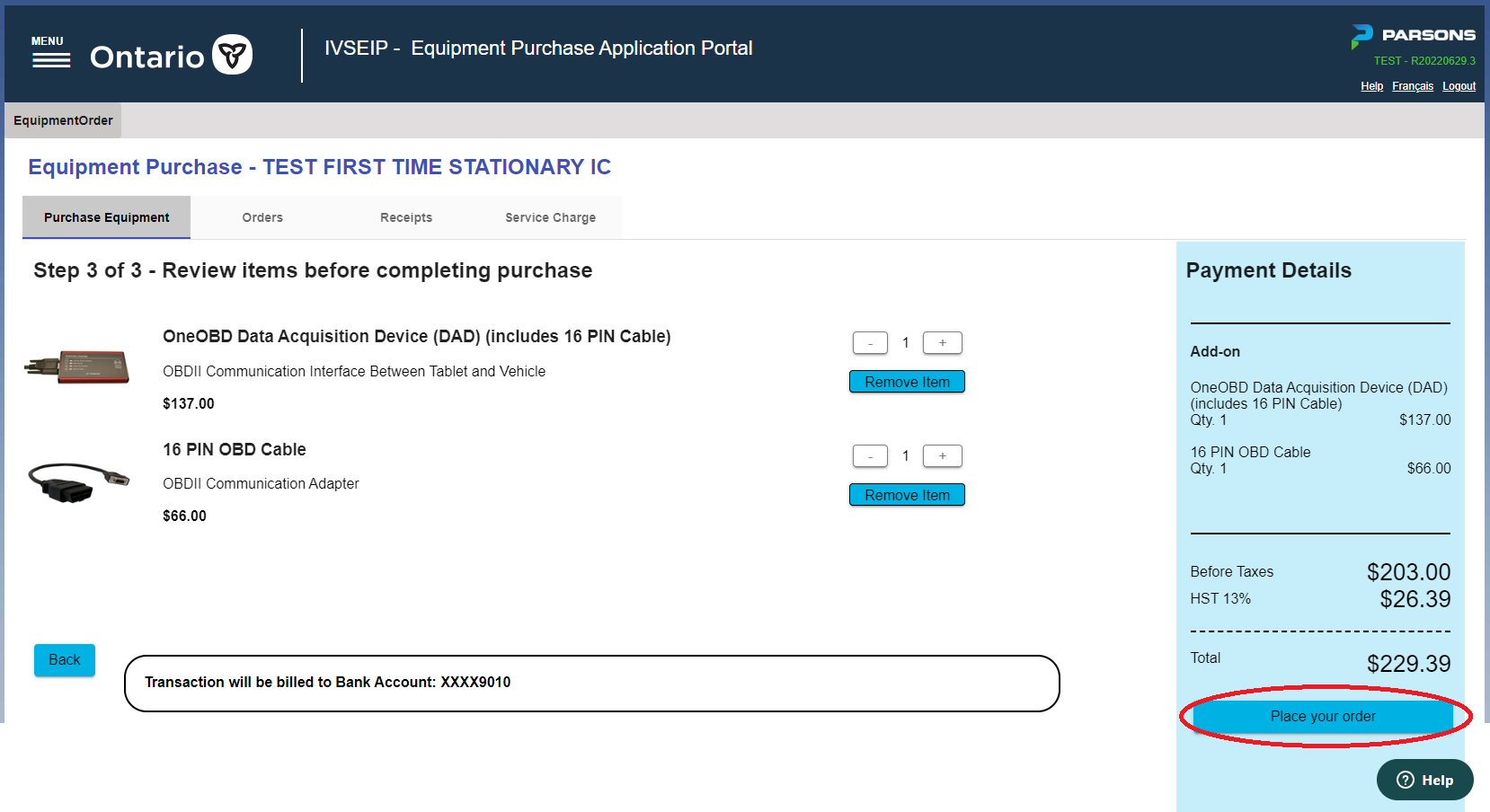
If everything is correct, then click on the “Place your order” button.
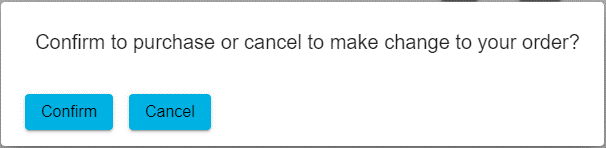
You will be asked to confirm your order one more time before the order is placed.
If you want to make a change to your order, then click on the “Cancel” button to go back and make the desired change.
If there are no changes, then click on the “Confirm” button. This will submit your order.
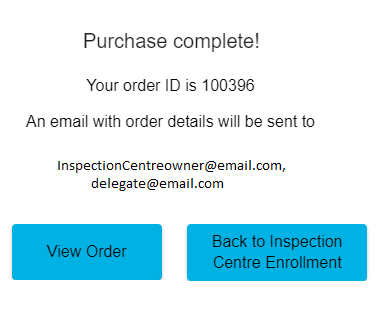
Once the order is placed, you will be provided with an Order ID which you can note down. An Order Confirmation email will be sent to the VIC Owner / Delegate (if assigned) email address.
This completes the order process. Click on the “View Order” button to be taken to the "Orders" tab where you can see the order details.
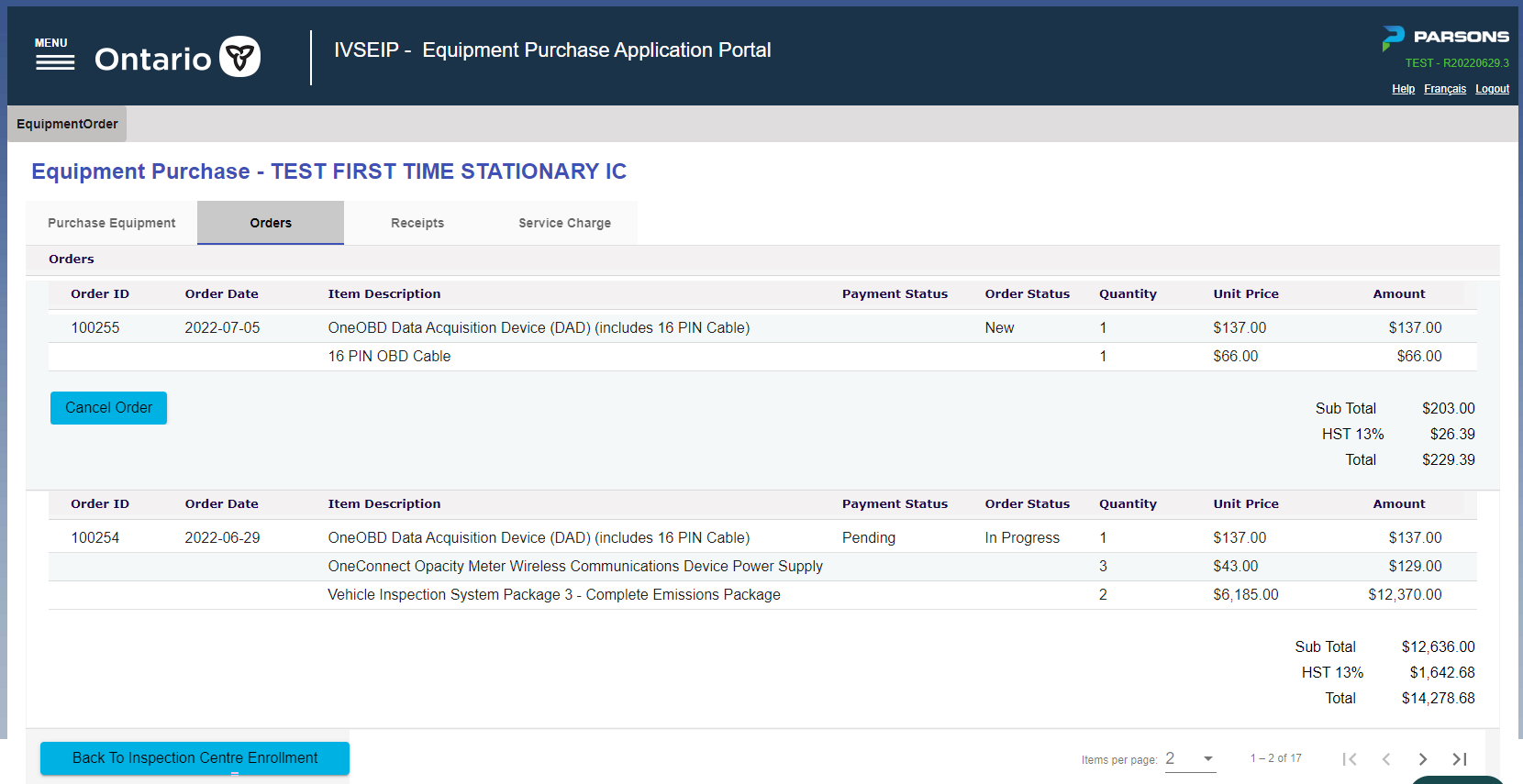
The Orders tab shows each Order by the Order ID and Order Date. You can also view the Payment Status and Order Status. From this screen, you have the option to cancel the order by clicking the "Cancel Order" button.
Comments
0 comments
Article is closed for comments.